Let us start by creating the following:
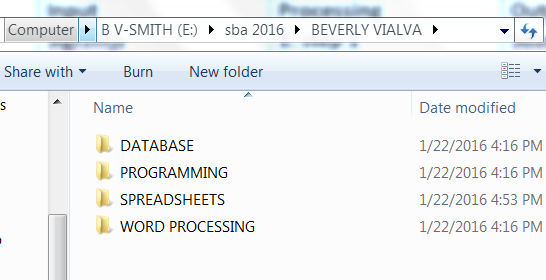
1. A folder with your name (first name and last name)
2. Inside that folder create four folders named:
- WORDPROCESSING,
- SPREADSHEET,
- DATABASE,
- PROGRAMMING.
SPREADSHEET SECTION:
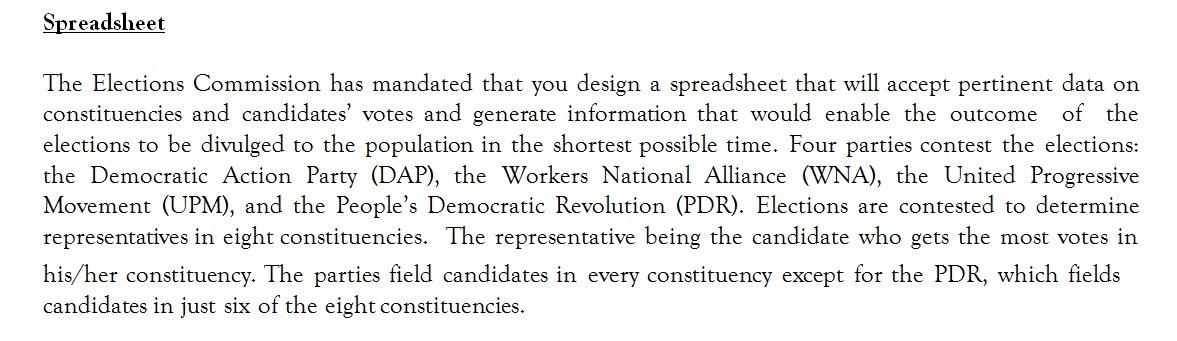
ELECTION 01 has three important sheets: SUMMARY, PERSONAL DATA and POLL CONDUCTED.
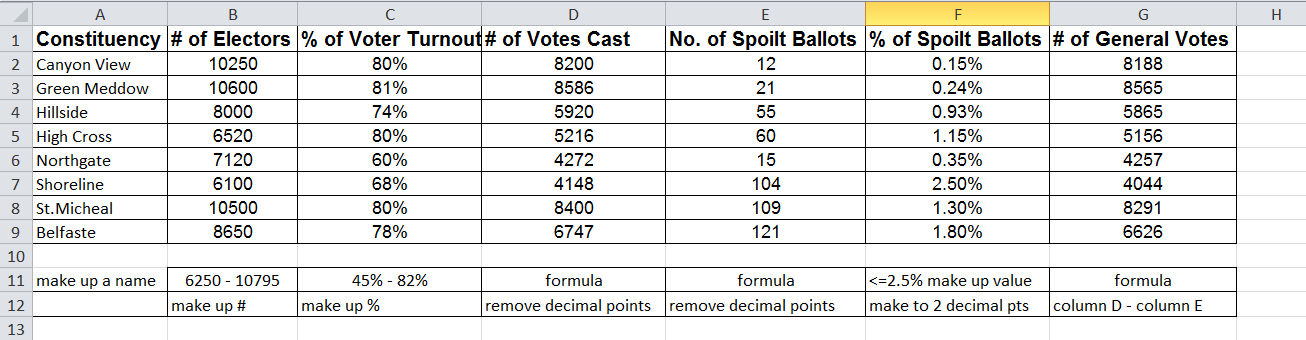
SUMMARY: Create the following sheet: rename sheet 1 to SUMMARY and do the following. Know that rows 11 and 12 are just there for instruction and not for you to type in.
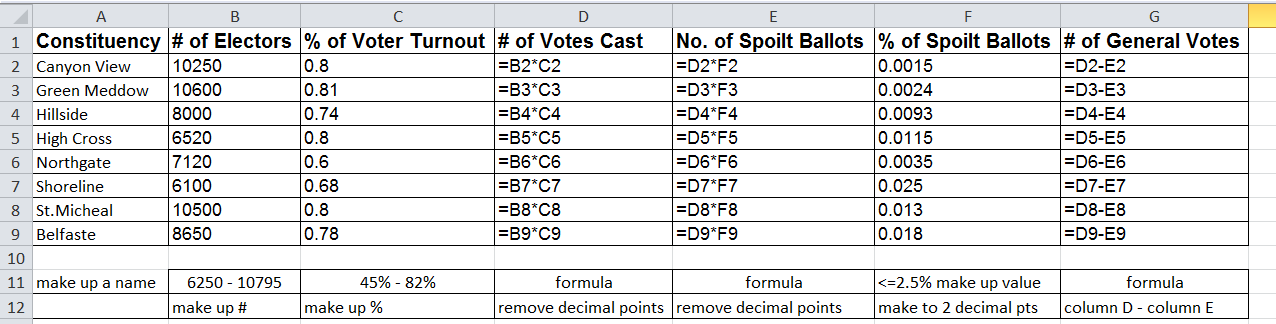
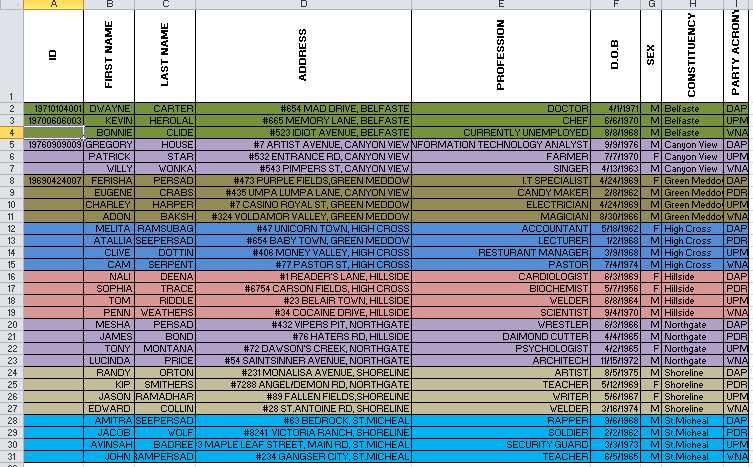
Next sheet 2 should be renamed to PERSONAL DATA and create the fields seen below:
ID - in the form yyyymmddxxx 11 digits, yyyy-year of birth, mm-month of birth, dd-day of birth, xxx- any three digits. if more than one person has the same birth date the last three digits should be different. ensure the person is born after the year 1945 but before 1998 so they can be over 18 but not too old (still alive) to vote.
FIRST NAME & LAST NAME - can be anything.
ADDRESS - must have a house number, a street name and an area.
PROFESSION - any job including housewife, house husband or unemployed.
DATE OF BIRTH - in the format mm/dd/yyyy
SEX - M or F
CONSTITUENCY - use the eight constituencies you made up in the SUMMARY sheet.
PARTY - DAP or PDR or WNA or UPM
Remember:-
- in two of the constituencies PDR will not go up,
- for all other constituencies all four parties go up and
- there must be 30 voters in all.
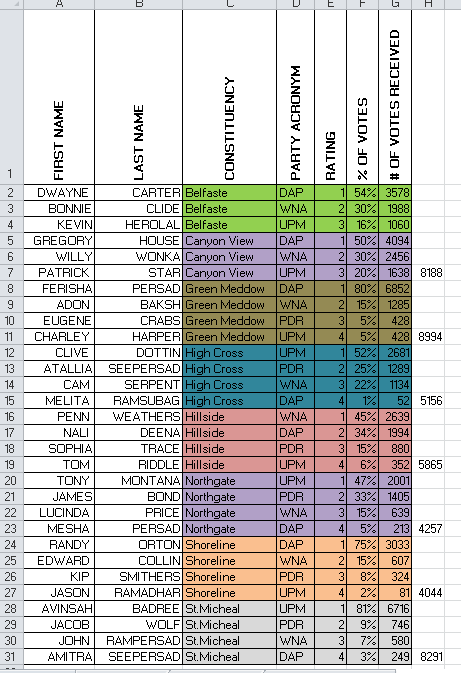
Next rename sheet 3 to POLL CONDUCTED:
It must have the headings as seen below:
- Copy the columns FIRST NAME, LAST NAME, CONSTITUENCY and PARTY ACRONYM to this sheet (POLL CONDUCTED).
- The RATING field should be filled in randomly by a number from 1 to 3 if there are three candidates in that constituency or 1 to 4 if there are four candidates. e.g. 3,1,2, or 4,1,3,2.
- The % OF VOTES field should be made to match the rating; 1 is the highest rating and so on. Make up these percentages. They should add up 100% for people of the same constituency.
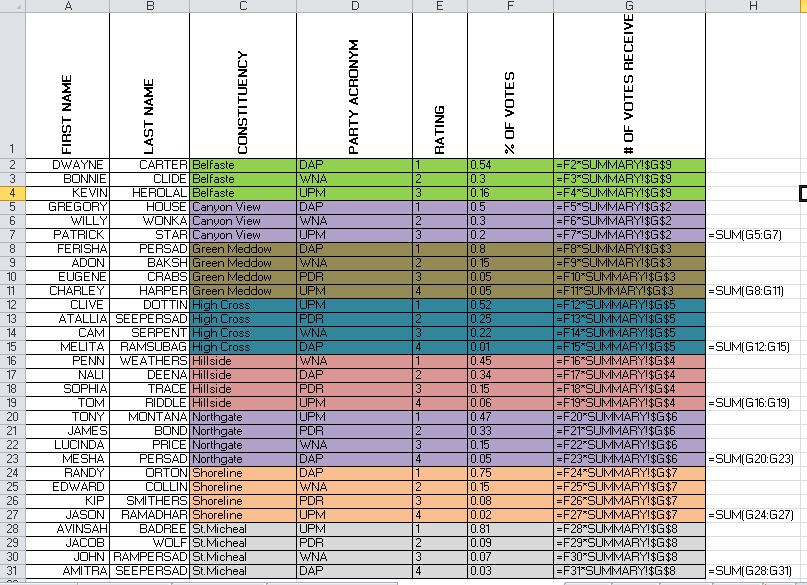
- # OF VOTES RECEIVED field should be should be filled in with a formula. for the first row of every constituency do the following... type = in the cell, then click on the cell with the % of votes for that person, type *, then click on the sheet named SUMMARY, then select the cell with the # OF GENERAL VOTES for that constituency, then press ENTER on your keyboard.
- Re-select the cell you just entered the formula into, then go to the last cell address in the formula and apply relative cell addressing to it. e.g. =F2*SUMMARY!G9 and change it to =F2*SUMMARY!$G$9.
- For the rest of candidates in that same constituency copy the formula downwards. Do not copy the formula to another constituency.
- Now go back to step 4 above until all the candidates are completed.
- At the end highlight all the number of votes received DATA and make them zero decimal places.
- For each constituency, in column H, by the last person in each constituency, find the total of the # OF VOTES RECEIVED. Ensure it adds up to the # OF GENERAL VOTES in the SUMMARY sheet for each constituency. This is just a check to ensure you did column G correct.
- SAVE THIS EXCEL FILE AS Election 01.
- Close the spreadsheet.
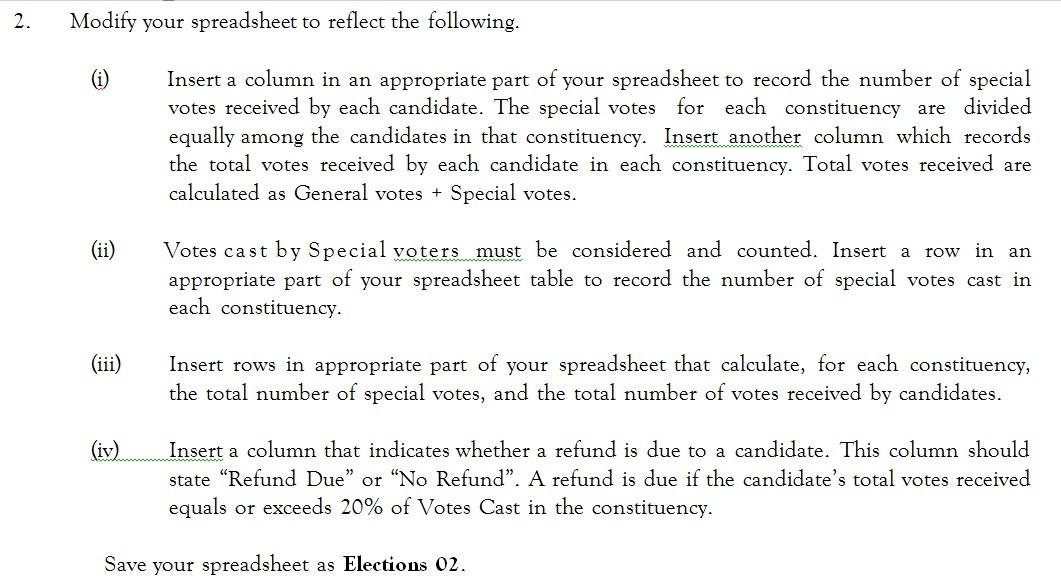
REOPEN Election 01 and click on file, save as, and type Election 02. then click on save.
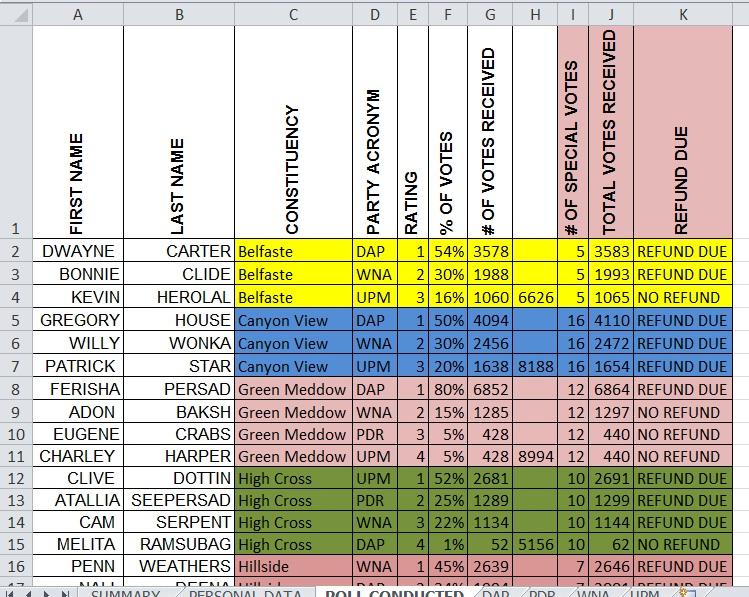
1. Go to the sheet POLL CONDUCTED and add the Fields in additional fields highlighted below.
2. Under # of special votes make each candidate of the same constituency get the same number. The number used must be from 1 to 13. Examples are shown below. Notice people of the same constituency get the same number of special votes.
3. The TOTAL VOTES RECEIVED column takes a formula. The TOTAL VOTES RECEIVED = # OF VOTES RECEIVED + # OF SPECIAL VOTES. So the formula = G2+ I2 should be placed into cell J2.
4. The REFUND DUE column takes a formula as seen below.
5. Into cell K2 type =IF(F2>=20%,"REFUND DUE", "NO REFUND")
6. Press ENTER on the keyboard.
7. Select back cell K2, Place your cursor to the right side bottom till you see the + sign then drag the formula down till the end of the candidates.
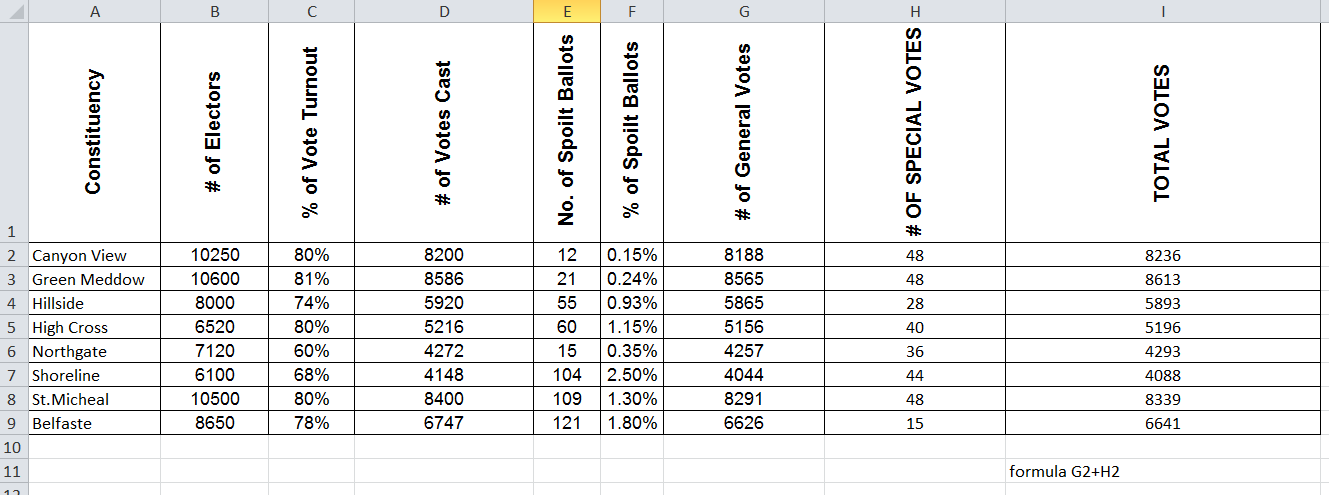
Go to the SUMMARY sheet and Type in the two extra headings in columns H and I as seen below:
1. Go to the POLLS CONDUCTED sheet and add up all the # OF SPECIAL VOTES and come back to the SUMMARY page and type in the total for that constituency under column H.
2. Into cell I2 type the formula = G2+H2.
3. Copy the formula downwards to the other constituencies.
4. SAVE the spreadsheet as Elections 02.
5. Close the file.
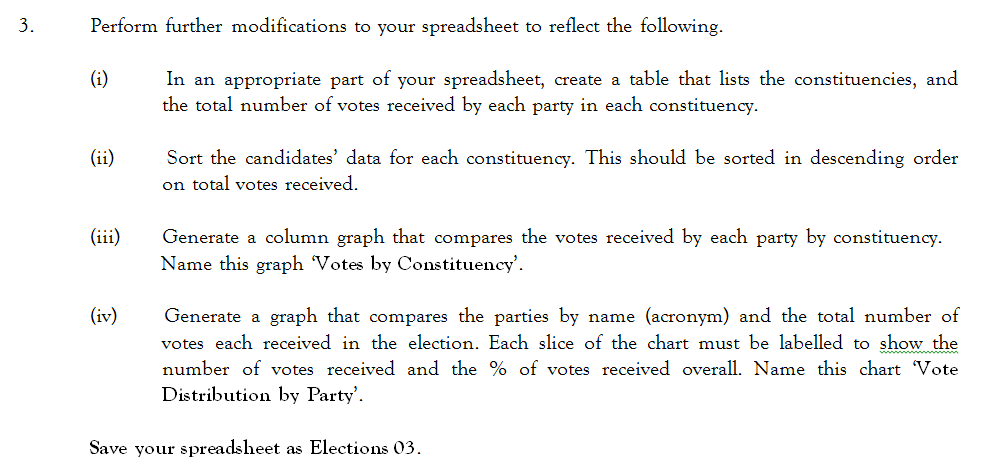
REOPEN Election 02 and save it as Election 03 in your SPREADSHEET folder.
1. Go to the POLL CONDUCTED sheet and Highlight the cells A1 to K31.
2. Click on the sort and filter icon seen on the right side top of the screen.
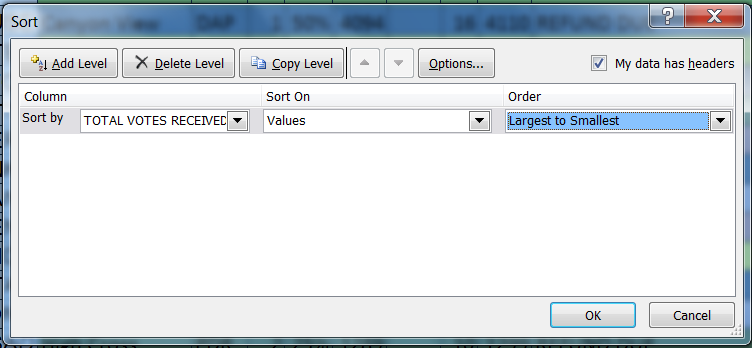
3. Click on CUSTOM SORT and then click on DELETE ALL LEVELS then ensure MY DATA HAS HEADERS is ticked off.
4. Next ADD A LEVEL then Select TOTAL VOTES RECEIVED, LARGEST TO SMALLEST as seen below.
5. Next click on OK.
Next
1. Create a new sheet and name it VOTES.
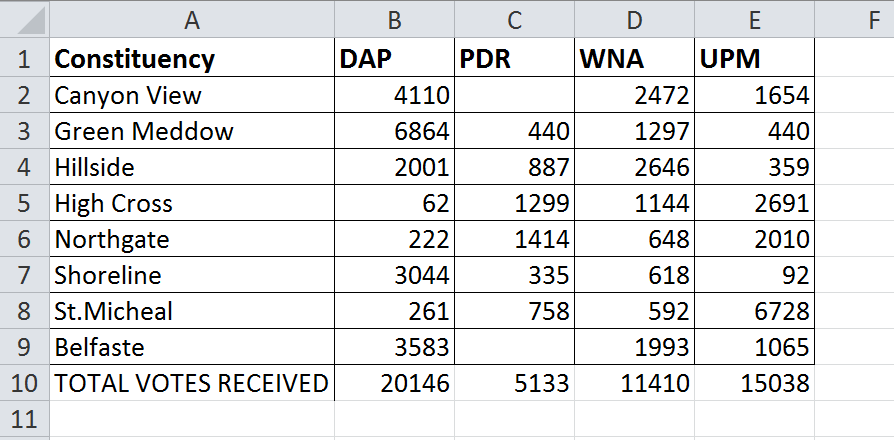
2. Create the headings as seen in the picture below.
3. Fill in the constituencies from the SUMMARY sheet by copying and pasting.
4. Now in cell B2 insert a formula. Type = then go to the sheet POLL CONDUCTED in column J (TOTAL VOTES RECEIVED) and click on the cell that has that PARTY and that CONSTITUENCY, CLICK ON THAT CELL and then press ENTER on the keyboard.
5. Do this for all the other candidates in each constituency. Notice under PDR that two of the candidates are missing, that is OK.
6. Into cell A10 type TOTAL VOTES RECEIVED.
7. Into cell B10 enter the formula, = SUM(B2:B9) then press ENTER on your keyboard.
8. Copy this formula across to each party.
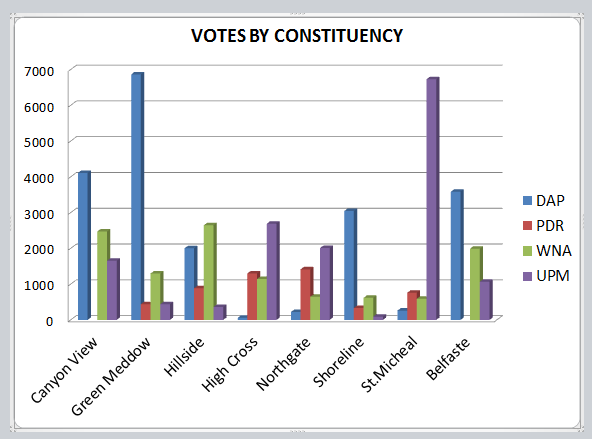
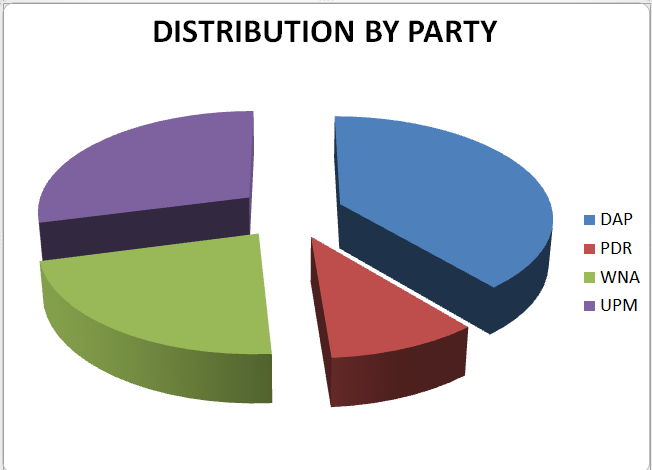
Next we will be creating the COLUMN GRAPH and PIE CHART.
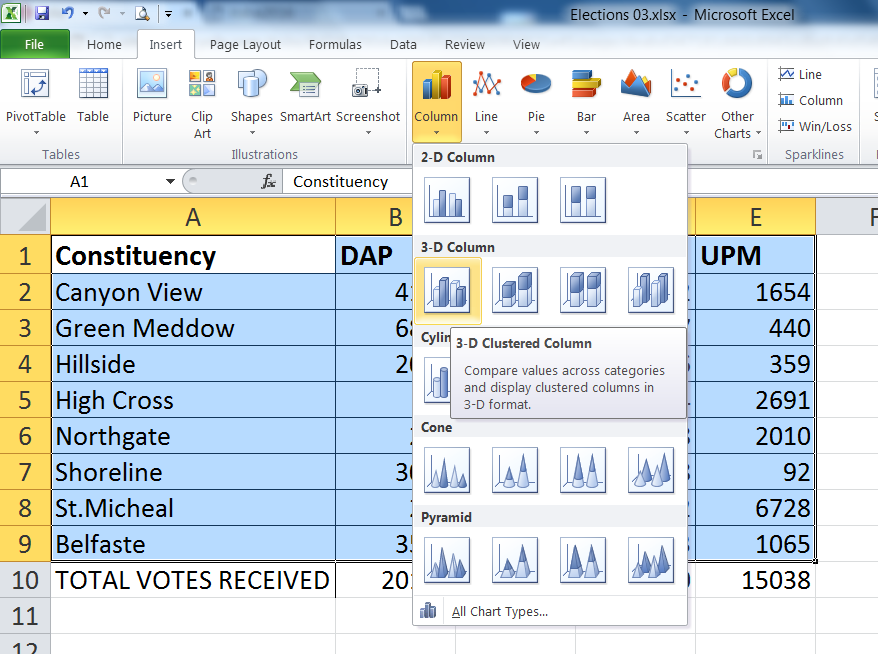
1. Highlight the range A1:E9, then select INSERT, Select the Column tool. Then choose one of the columns on the left going downwards.
2. Next when the graph shows up, RIGHT CLICK ON IT and then select MOVE CHART, then select NEW SHEET, then type in VOTES BY CONSTITUENCY then click on OK.
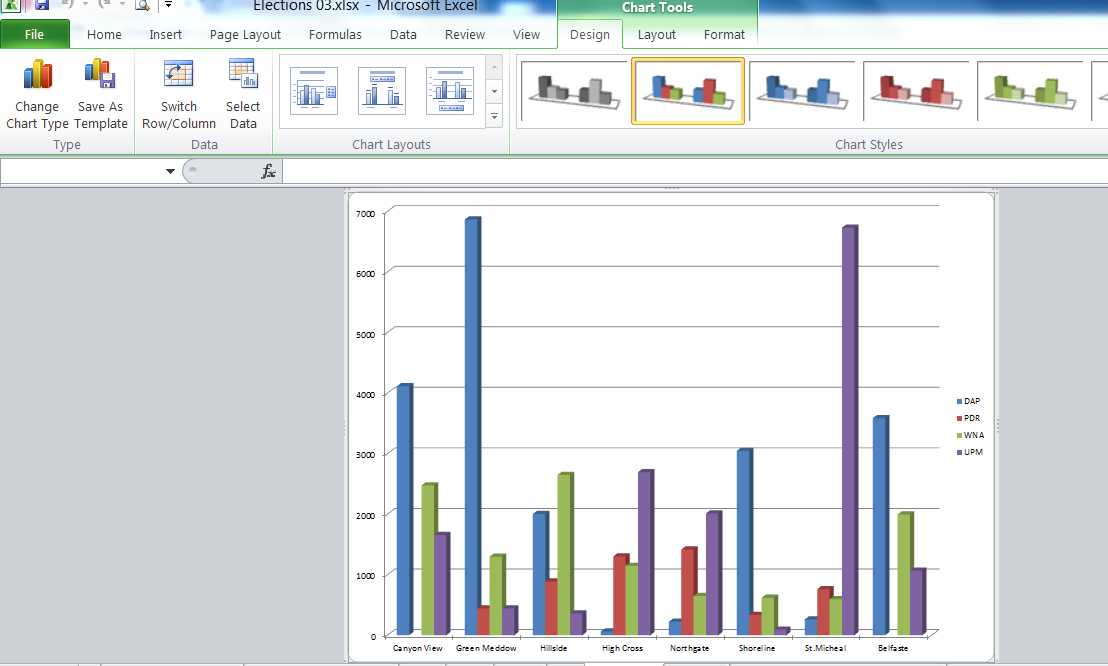
Next ensure your chart has a title by selecting the DESIGN menu and above CHART LAYOUTS select the one to the left with the title. Click on the title and type in the Name VOTES BY CONSTITUENCY. It should eventually look like this below.

Next we have to make the pie chart:
1. select the headings in row 1 from A1 to E1.
2. PRESS AND HOLD DOWN CTRL on you keyboard and select A10:E10.
3. Click on INSERT, select the PIE CHART.
4. Again right click on the chart and select move. select NEW SHEET, name the sheet DISTRIBUTION BY PARTY.
5. Click on OK.
6. Put in the title DISTRIBUTION BY PARTY.
7. SAVE THIS FILE AS Election 03.
8. Close the file.
DATABASE SECTION:
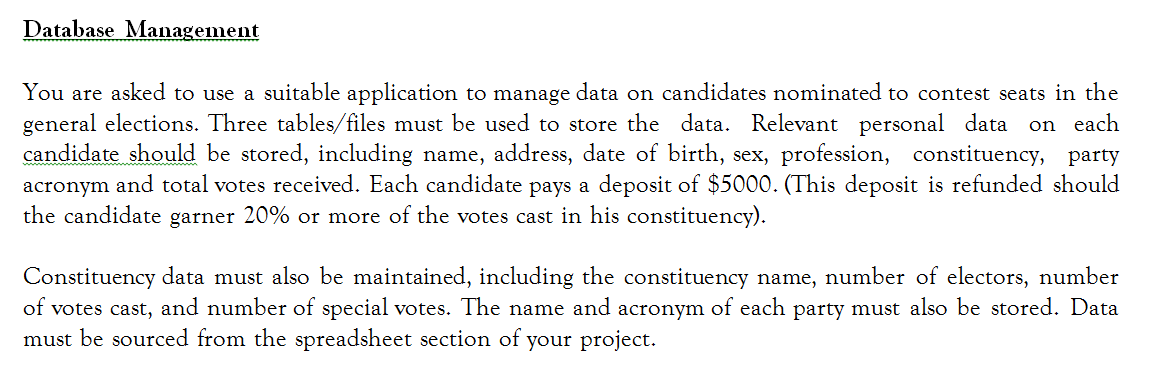
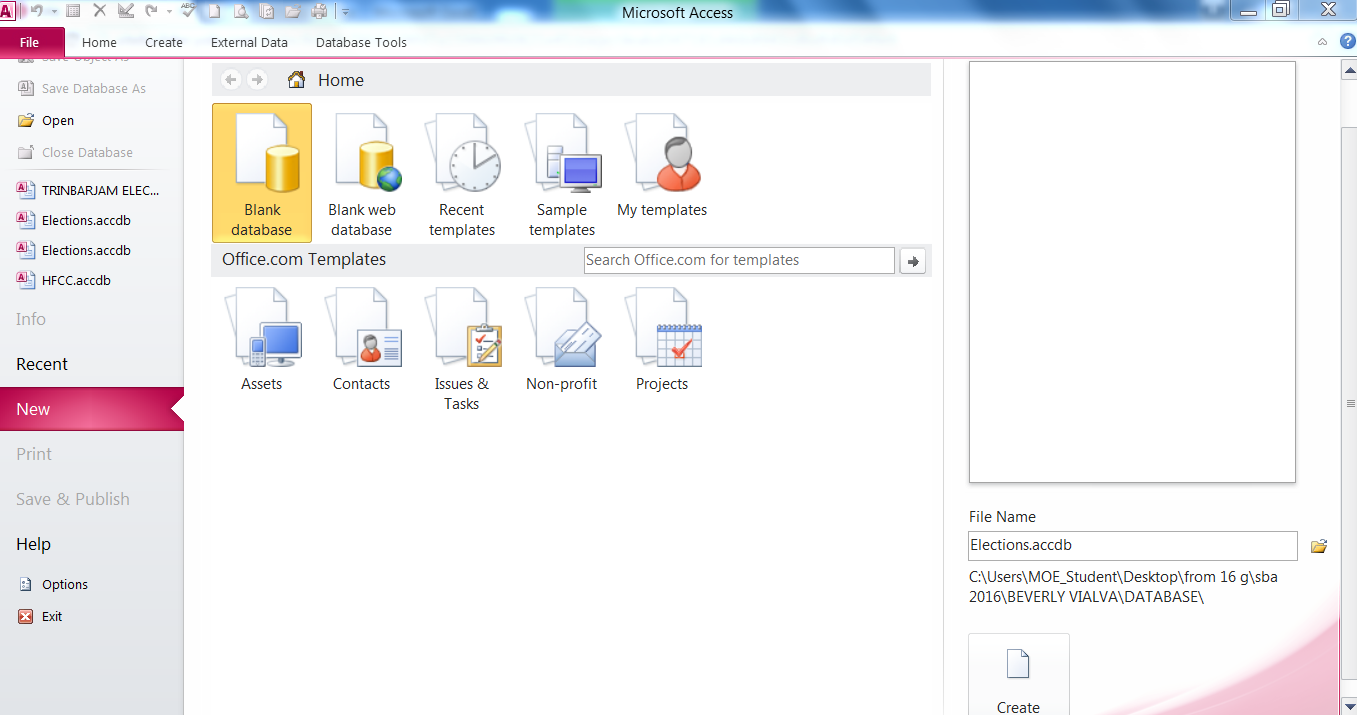
1. Open Microsoft Access and browse to find your database folder and name your database Elections, then click on create.
2. When access opens click on create and then table design.
3. Make the three tables with the properties as shown below: Ensure that all your fields in all of your tables in design view have an appropriate DESCRIPTION.
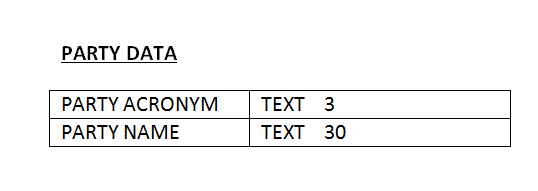
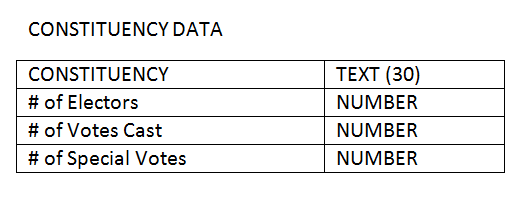
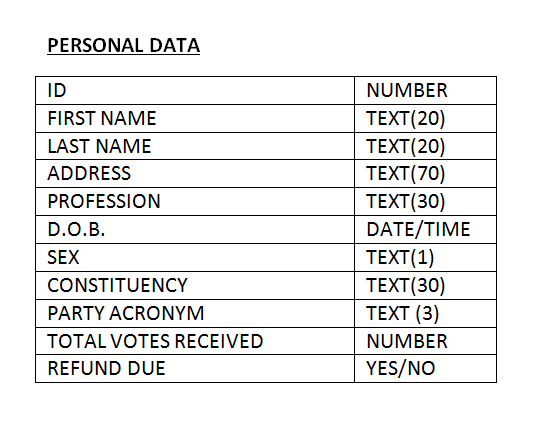
When all of the tables have been created then it is time to create the relationships.
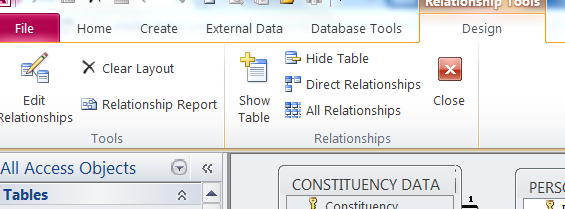
1. Select the Menu Database Tools then select Relationships.
2. Add each table only once.
3. If you added a table more than once, then select it and press the DELETE BUTTON on the keyboard.
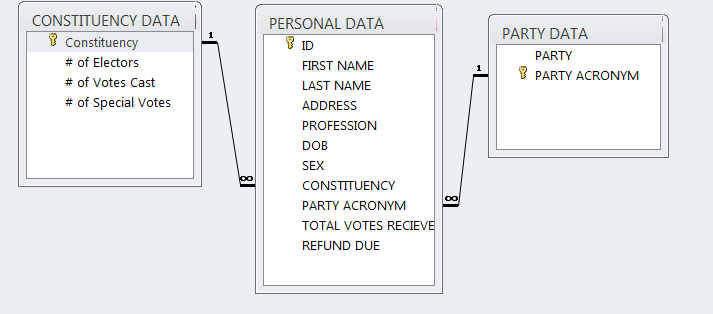
4. Line up the tables showing all the fields as seen in the picture below showing all t he field names.
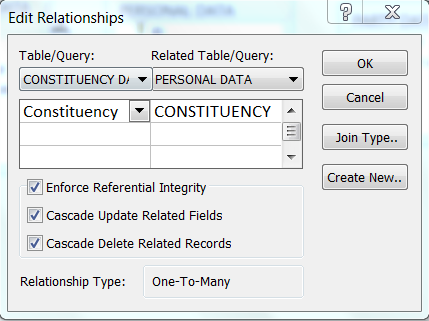
5. Drag Constituency in the Constituency Data Table to Constituency in the Personal Data Table. When the window pops up ensure all three boxes are ticked and select OK.
6. Drag Party Acronym in the Personal Data Table to Party Acronym in the Party Data Table. When the window pops up ensure all three boxes are ticked and select OK.
7. Next click on the CLOSE BUTTON.

Next it is time to enter data into the Tables: Please see below.
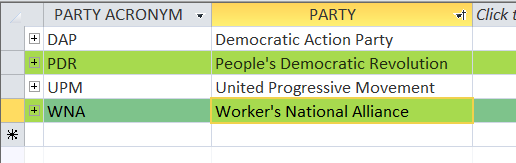
1. Your Party Data Table will be filled out like mine. AT THE END YOUR PARTY DATA TABLE SHOULD HAVE 4 RECORDS.
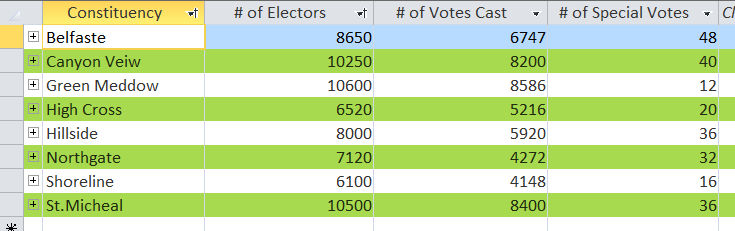
2. Your Constituency data will be filled in by using your SUMMARY sheet in your spreadsheet Election 03. You can copy and paste the data into their respective places. AT THE END YOUR CONSTITUENCY TABLE SHOULD HAVE 8 RECORDS.
PARTY DATA TABLE:
CONSTITUENCY DATA TABLE:
Next we need to get the data into the PERSONAL DATA TABLE:
1. There are many ways to do this but here is one way... Go to your Election 03 and copy the DATA, column by column into the PERSONAL DATA TABLE.
2. Fill in the last two fields (TOTAL VOTES RECEIVED and REFUND DUE) in the PERSONAL DATA table of your database, using the POLL CONDUCTED sheet of the Election 03 spreadsheet.
AT THE END YOUR TABLE SHOULD HAVE 30 RECORDS.

NOW FOR THE QUERIES:
I WILL CONTINUE THIS TOMORROW...
WORD PROCESSING SECTION:
NOMINATION FORM:
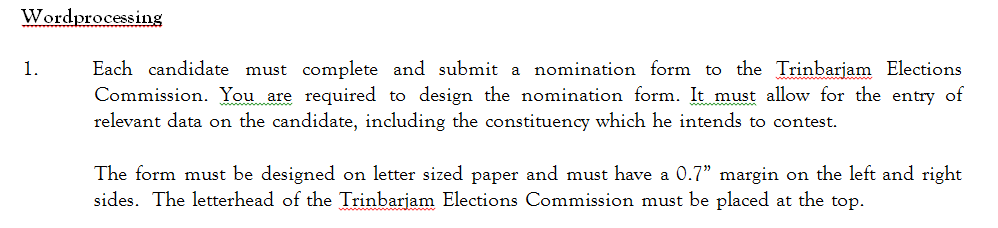
- Create the NOMINATION FORM using the hints below: The nomination form should be on two sheets AND REMEMBER THE LEFT AND RIGHT MARGINS ARE 0.7".
- Create an appropriate letterhead for your NOMINATION FORM and place it at the top of page 1.
- Save this as NOMINATION FORM in the WORD PROCESSING folder.
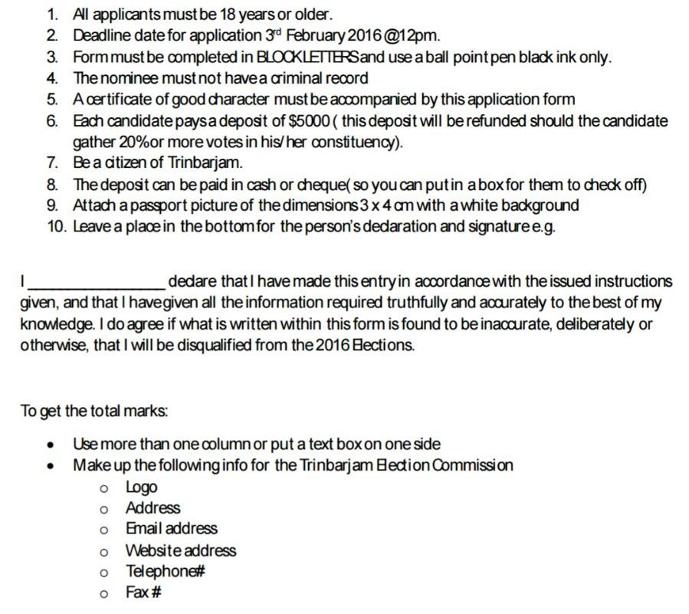
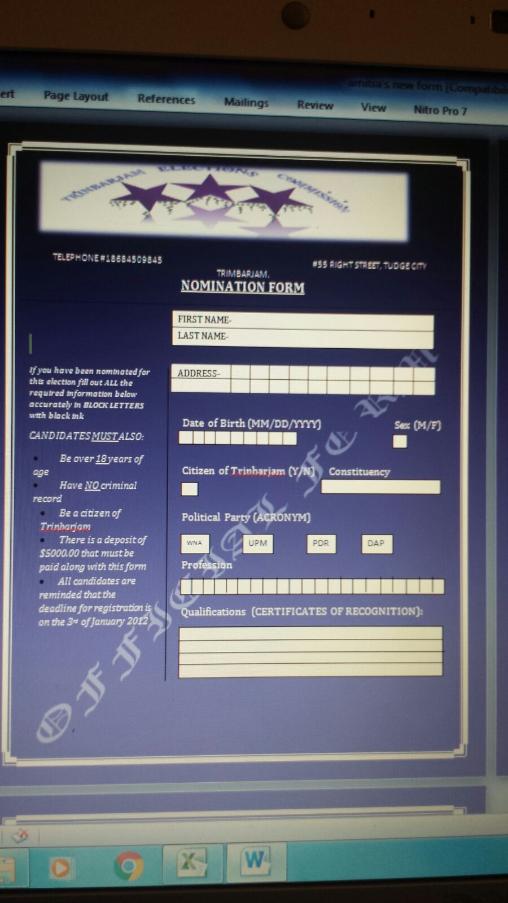
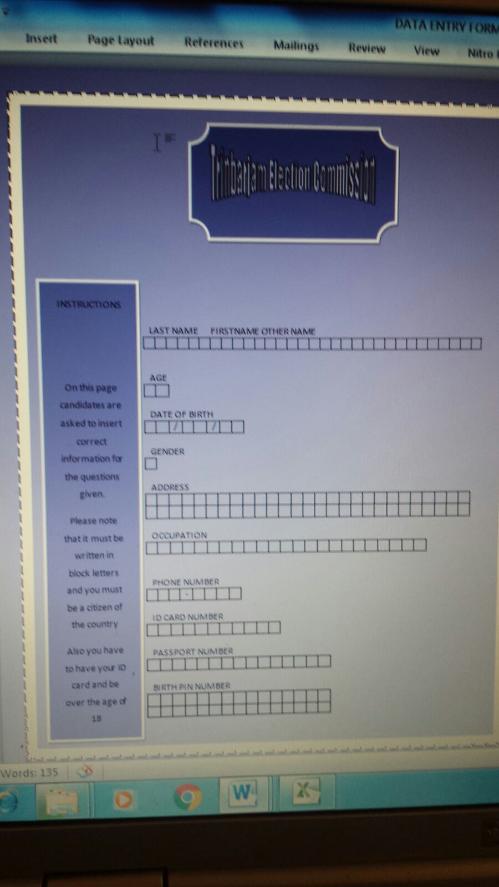
HERE ARE SOME SAMPLES....
LEFT SIDE PAGE 1 RIGHT SIDE PAGE 2.
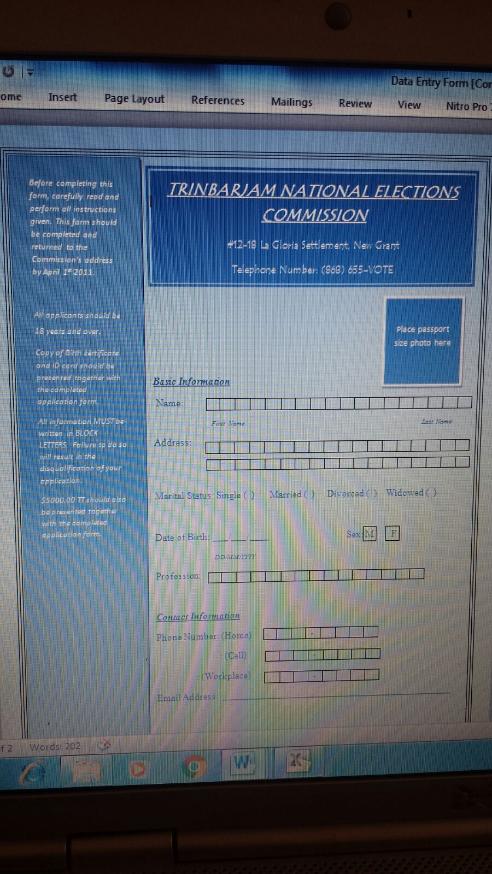
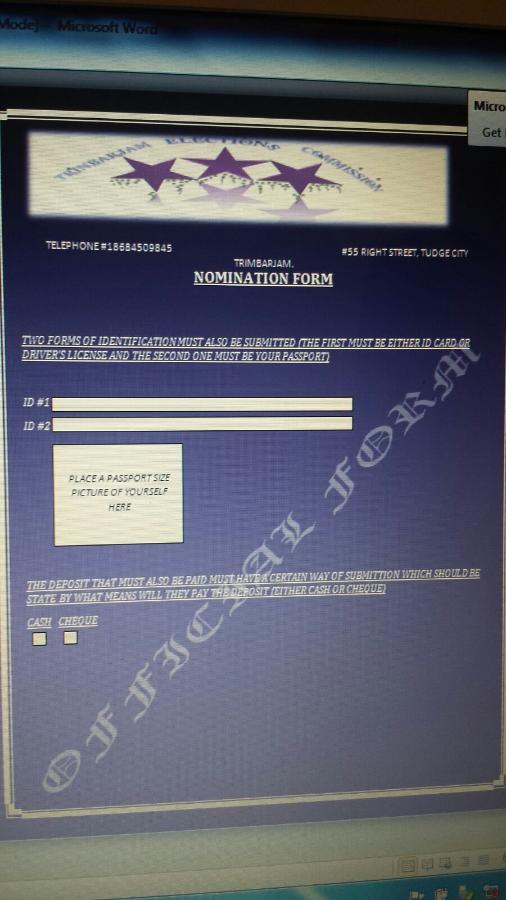
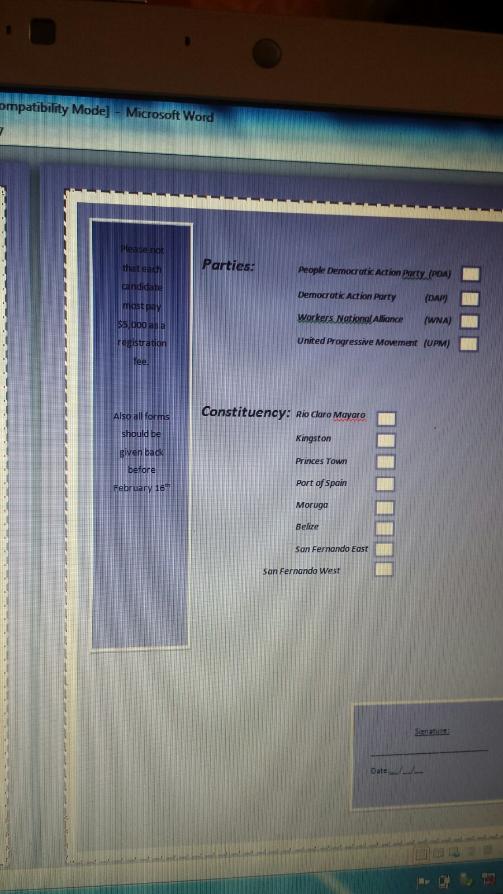
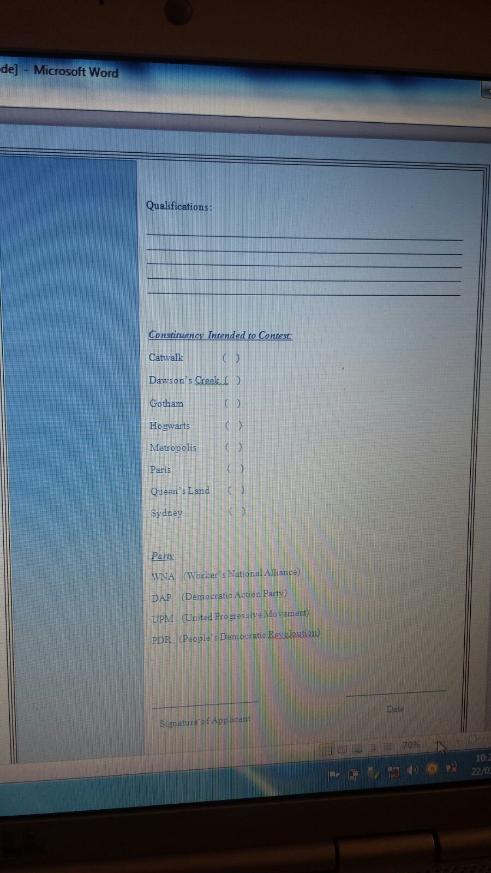
MAIN LETTER SKETCH.
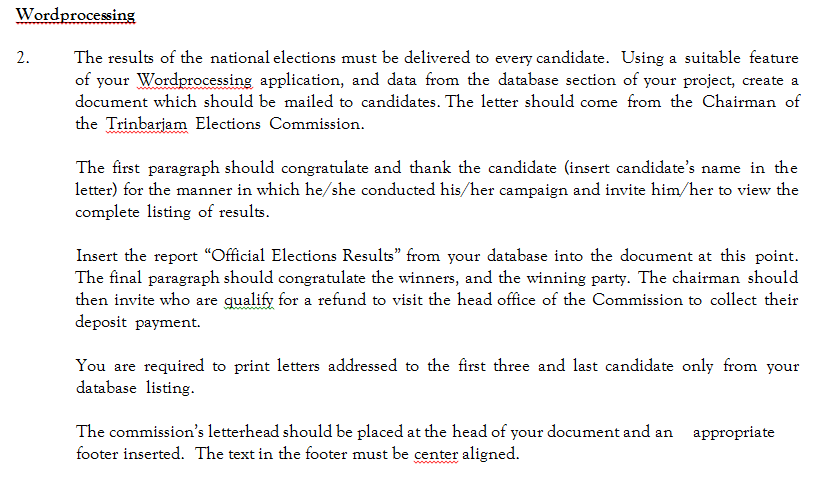
1. The document must be have a place to sign.
2. The date on the letter MUST BE 4th February 2016.
3. Font size 12 to 14, Font style - any easy to read simple font, Line spacing 1.5, Justify the body of the letter.
4. After sketching the letter move on to the other part... PROGRAMMING.
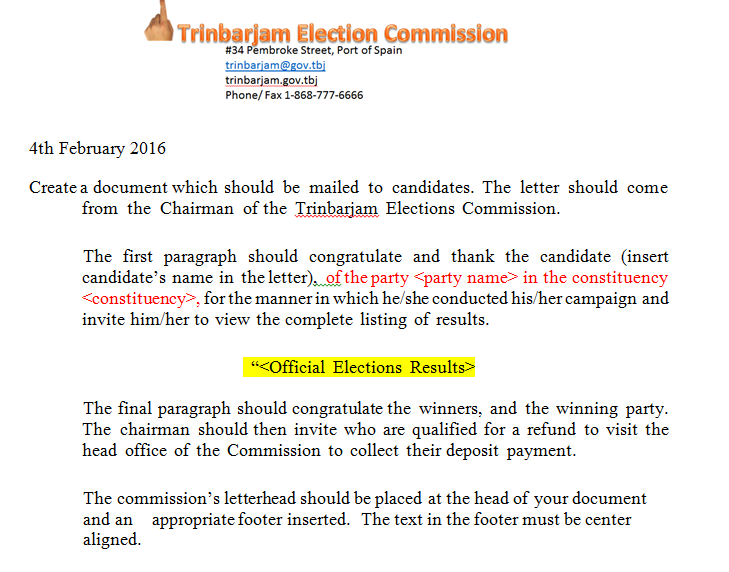
PROGRAMMING SECTION:
1. ALGORITHM
Create the following in one document. Do not as yet number the pages but place them in this order. Put a simple border on your page.

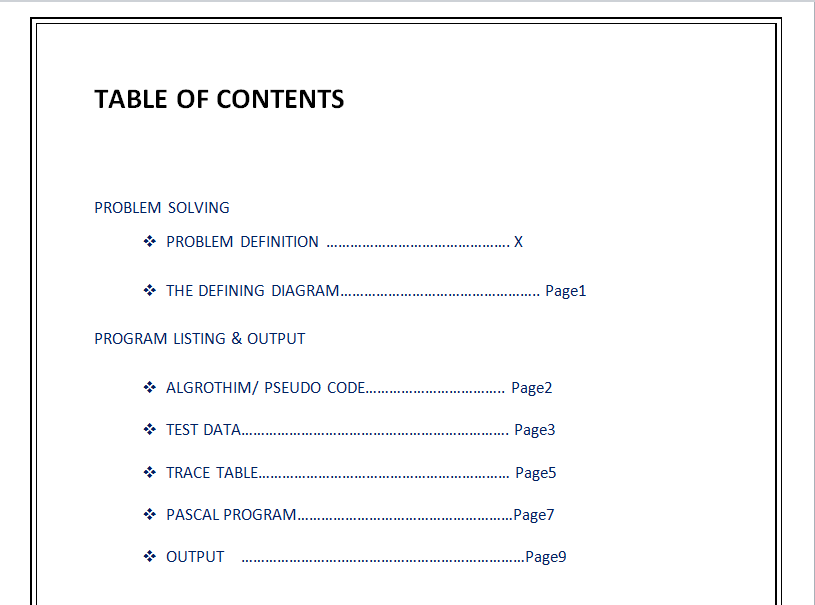

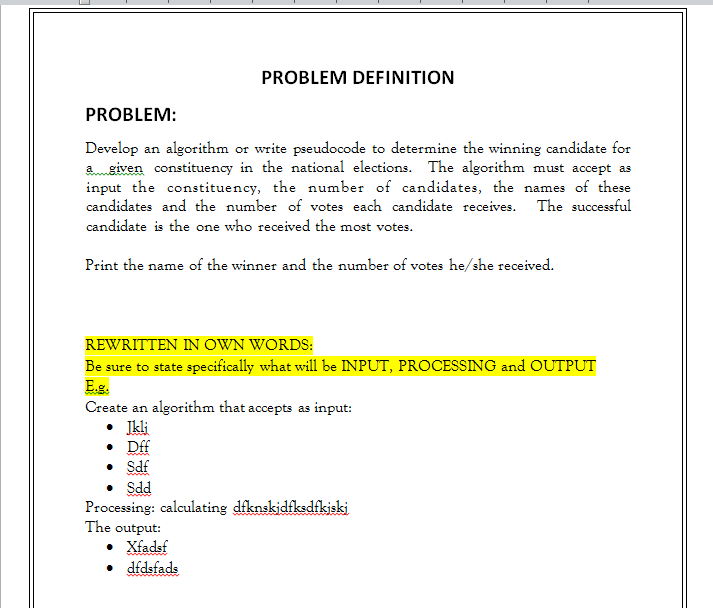
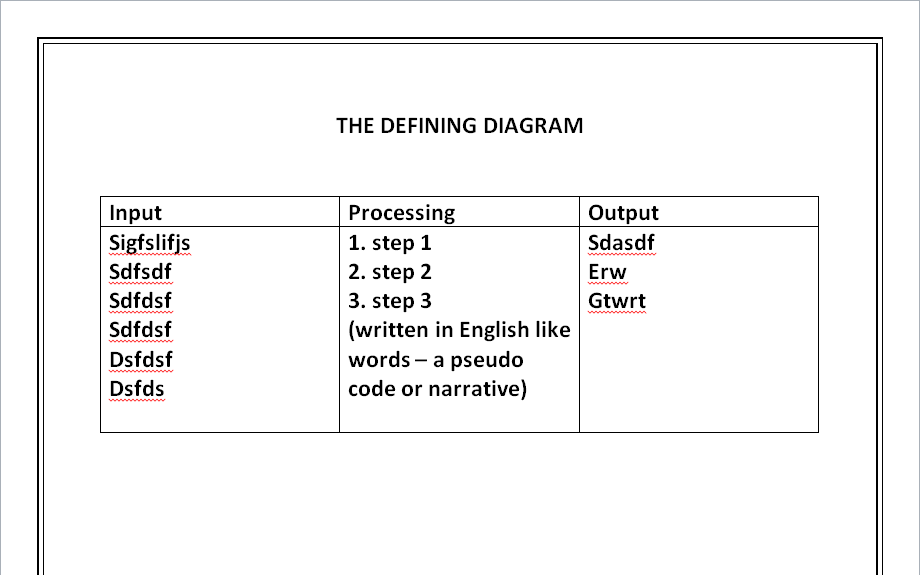

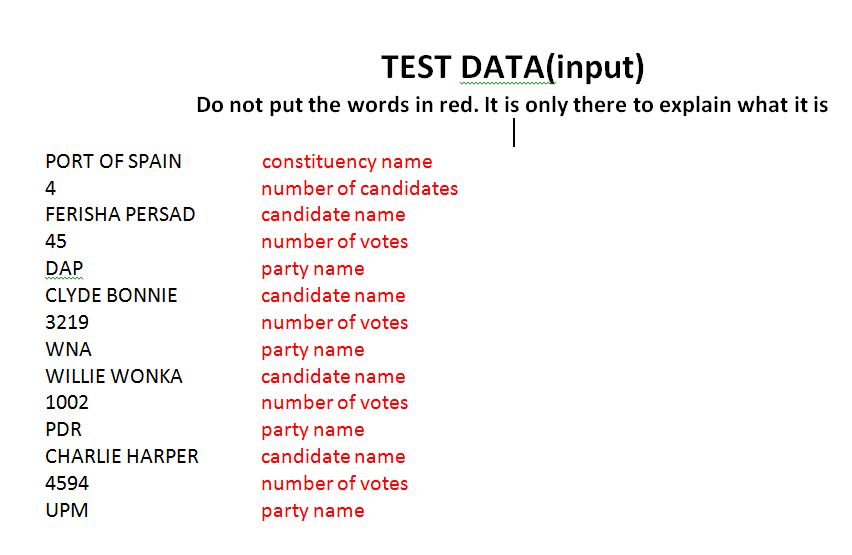
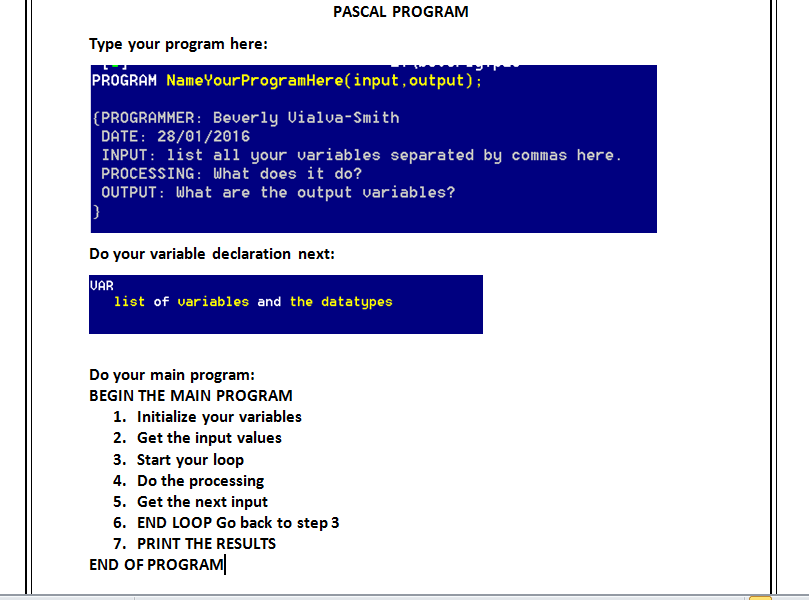
The algorithm can be downloaded below: Please use your own variable names and test data.

|
ALGROTHIM sample.docx Size : 19.354 Kb Type : docx |
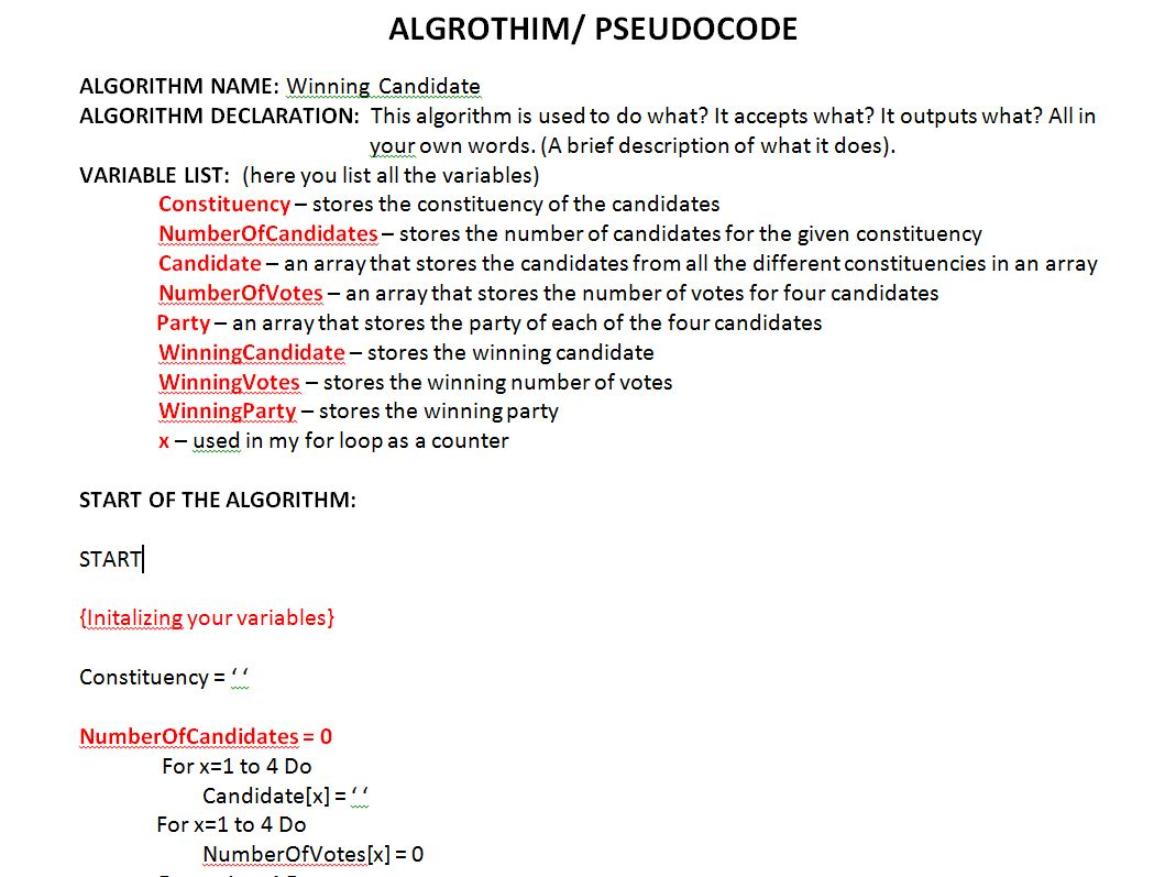
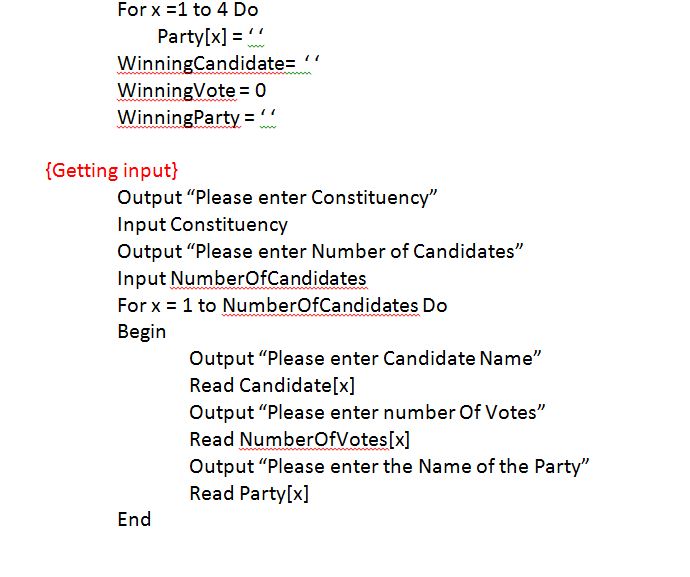
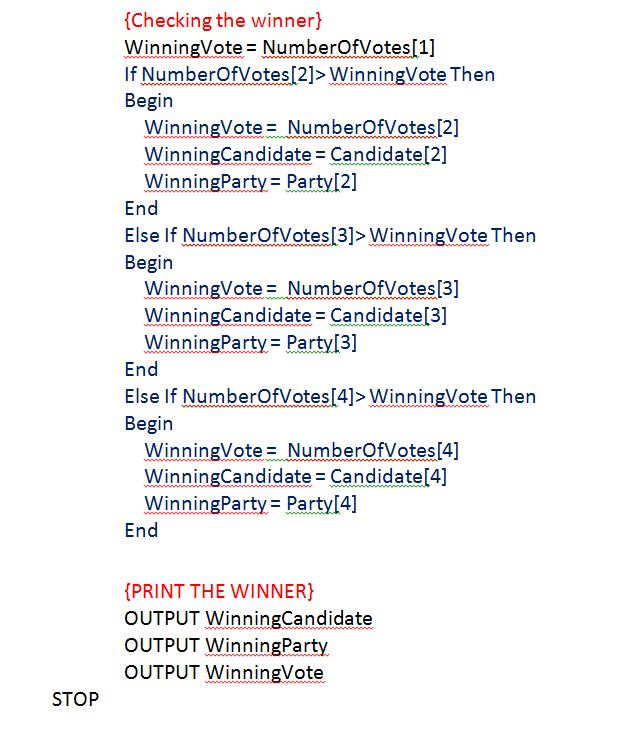
Try to do as much as you can please!
EMAIL WHATEVER YOU HAVE BEFORE YOU GO TO SLEEP EVERY NIGHT ---> itsba2016@gmail.com
You would regret it if you didn't email eveything and you lost you files. It happens to at least one person every single year!